Ahmad Foysal · · 4 min read
Winbox Over Starlink: Reach a MikroTik Behind Starlink CGNAT
Port forwarding does not work on a standard Starlink line. This is why, how to confirm it on your router, and the quickest way to get Winbox back.
You put a MikroTik behind a Starlink dish, forward port 8291, and Winbox still will not connect from outside. Nothing is wrong with your rules. A standard Starlink line simply has no public IPv4 address, so no connection from the internet can ever arrive at your router.
This guide explains what is happening, how to confirm it in one minute, and how to open Winbox from anywhere anyway.
Why port forwarding fails on Starlink
Starlink puts most customers behind carrier-grade NAT (CGNAT). Your router gets an address in the 100.64.0.0/10 range. Thousands of customers share one public address, and Starlink's own equipment decides where incoming traffic goes. Since it has no rule for your router, incoming connections are dropped before they reach you.
At the time of writing, Starlink offers a public IPv4 option only on its Priority (business) plans. On Residential and Roam plans there is no such option. Even with the public IP, the address can change and you need your own router in bypass mode.
The same problem exists on almost every 4G and 5G line, and with many fibre providers that have run out of IPv4 addresses.
Check it on your MikroTik
Open a terminal on the router and compare two addresses.
/ip address print where interface=ether1
/ip cloud print
Use the name of your own internet port in place of ether1.
- The first command shows the address Starlink gave the router.
- The second shows the public-address the internet sees (IP Cloud must be enabled for this).
If the router's own address starts with 100.64 to 100.127, or the two addresses are different, you are behind CGNAT. Port forwarding, dynamic DNS and a VPN server on this router cannot work.
What does work: the router connects out
CGNAT blocks connections coming in. It never blocks connections going out, or you could not browse the web. So the fix is to turn the direction around:
- Your MikroTik opens an encrypted tunnel out to a server that has a public address.
- That server gives your router its own port.
- You connect to that port with Winbox, and the server passes you through the tunnel to the router.
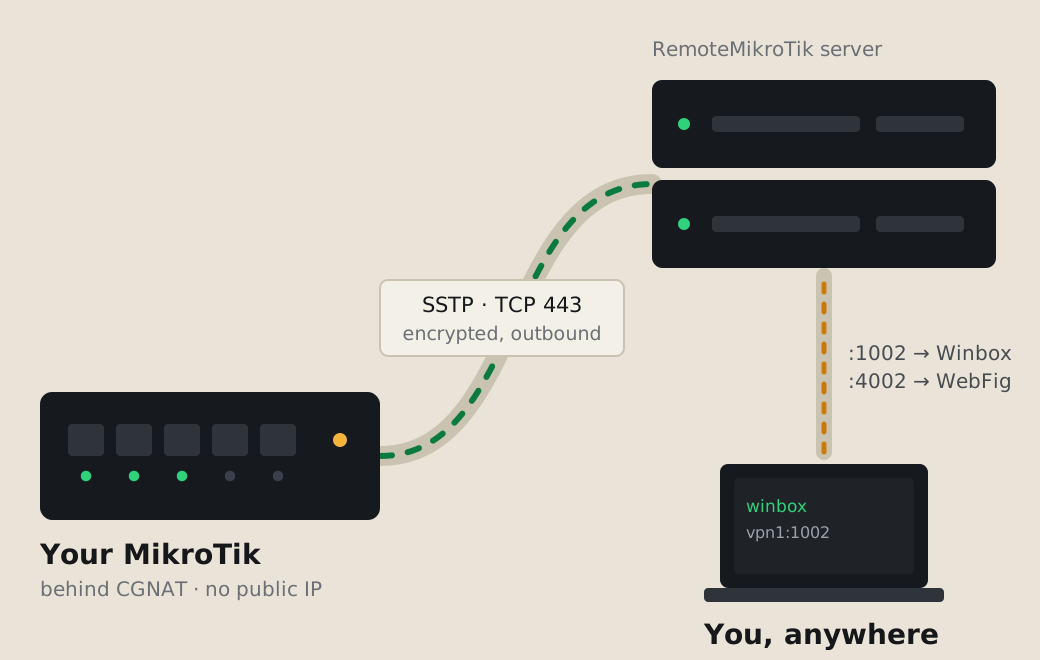
You can build this yourself with a rented server and a VPN. RemoteMikroTik is the ready-made version: the tunnel is SSTP on TCP port 443, the same port as normal HTTPS, so it passes through Starlink without any change on the Starlink side.
Set it up in about two minutes
- Create an account at https://remotemikrotik.com and choose Routers → Add router. The Free plan covers Winbox for one router.
- Copy the setup script from the router's page.
- On the MikroTik, open New Terminal, paste the script and press Enter.
- Copy the Winbox address the panel shows, for example
vpn1.remotemikrotik.com:1002, and paste it into Winbox Connect To. Log in with your router's own user and password.
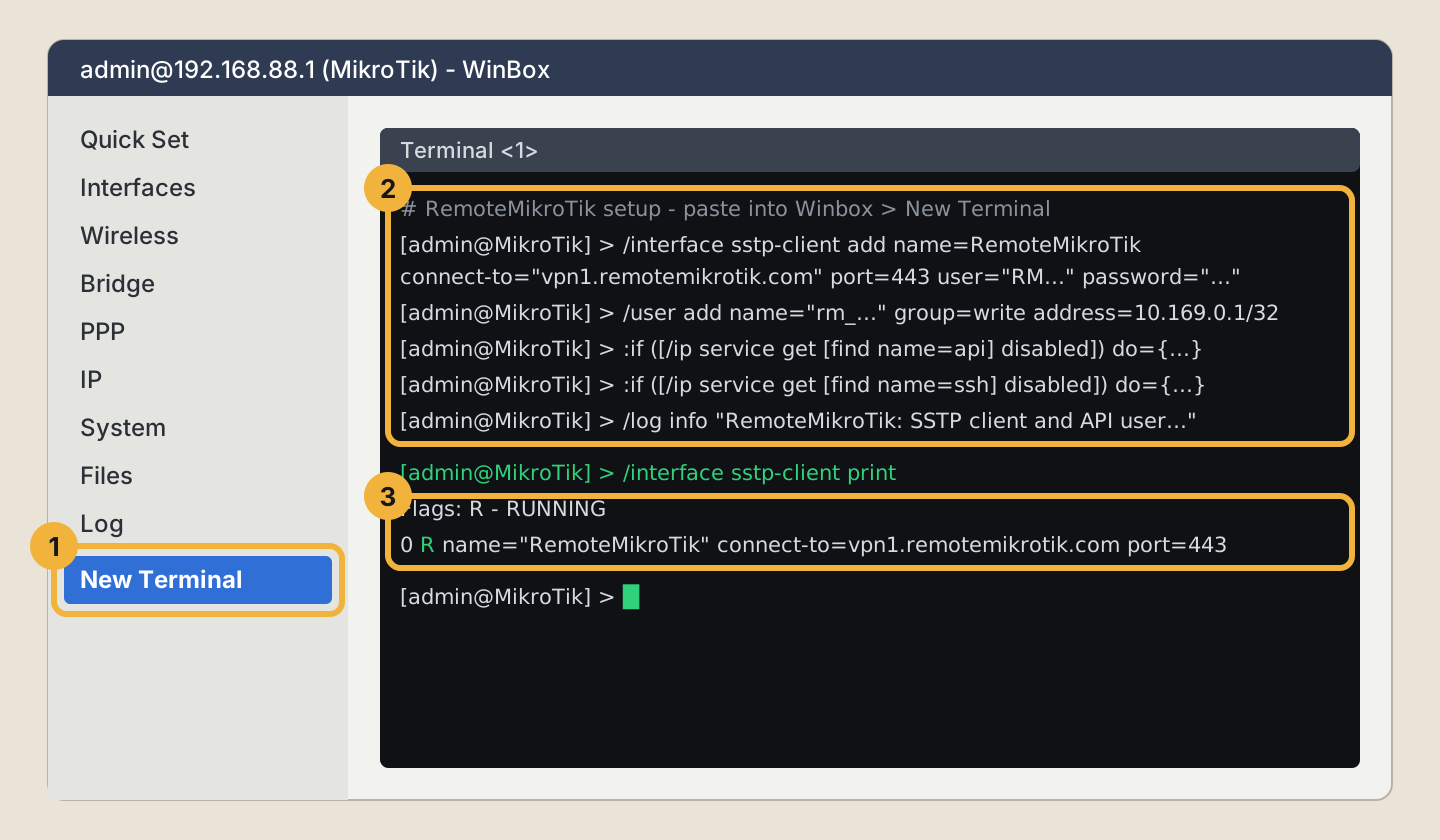
The script adds one SSTP client and one panel user that only works from inside the tunnel. Your normal internet traffic keeps going straight out through Starlink. It does not pass through the tunnel, so your speed stays the same.
Tip: The Winbox address and port stay the same for as long as the router is in your account, so you can save it in Winbox once.
Starlink settings that matter
- Bypass mode (your MikroTik connected directly to the dish) and the normal mode with the Starlink router in front both work. The tunnel only needs outgoing internet.
- If the dish reboots or moves to another satellite, the tunnel reconnects by itself, usually within a few seconds.
- A site that sleeps the dish at night will show as offline during those hours. With Pro you get a Telegram message when a router has been offline for 10 minutes, and another when it is back.
More than Winbox
- WebFig and the API get their own ports too (Standard and Pro). The API port lets hotspot and billing tools reach a router on Starlink.
- Cameras and other devices behind the router can get an address with device ports.
- Hotspot vouchers can be checked and reset from Telegram (Pro), which helps when the Starlink site is a shared Wi-Fi business far from you.
Common questions
Will IPv6 solve this?
Starlink does give IPv6, and a MikroTik with IPv6 set up correctly can be reached that way. The catch is that the network you connect from must have IPv6 too, and many mobile and office networks do not. The prefix can also change.
Does the tunnel slow down my Starlink connection?
No. Only your Winbox, WebFig or API session uses the tunnel. Everything else goes out the normal way.
Is it safe to have Winbox reachable from the internet?
The port leads only to your router, and the router's own login still protects it. Use a strong password, keep RouterOS updated, and read Keep your router safe.
Does it work on RouterOS 6?
Yes. Any MikroTik with RouterOS 6 or 7 that can run an SSTP client works, including the small hAP models.
Next steps
Follow Add your first router for every step with screenshots, or read how the tunnel works in more detail.