Getting started
Connect with Winbox, WebFig or the API
Use the addresses on the router page with your router's own login.
1 min read · Updated
Your router's addresses are at the top of its page in the panel, in the Connect card, each with a Copy button. They never change while the router is in your account.
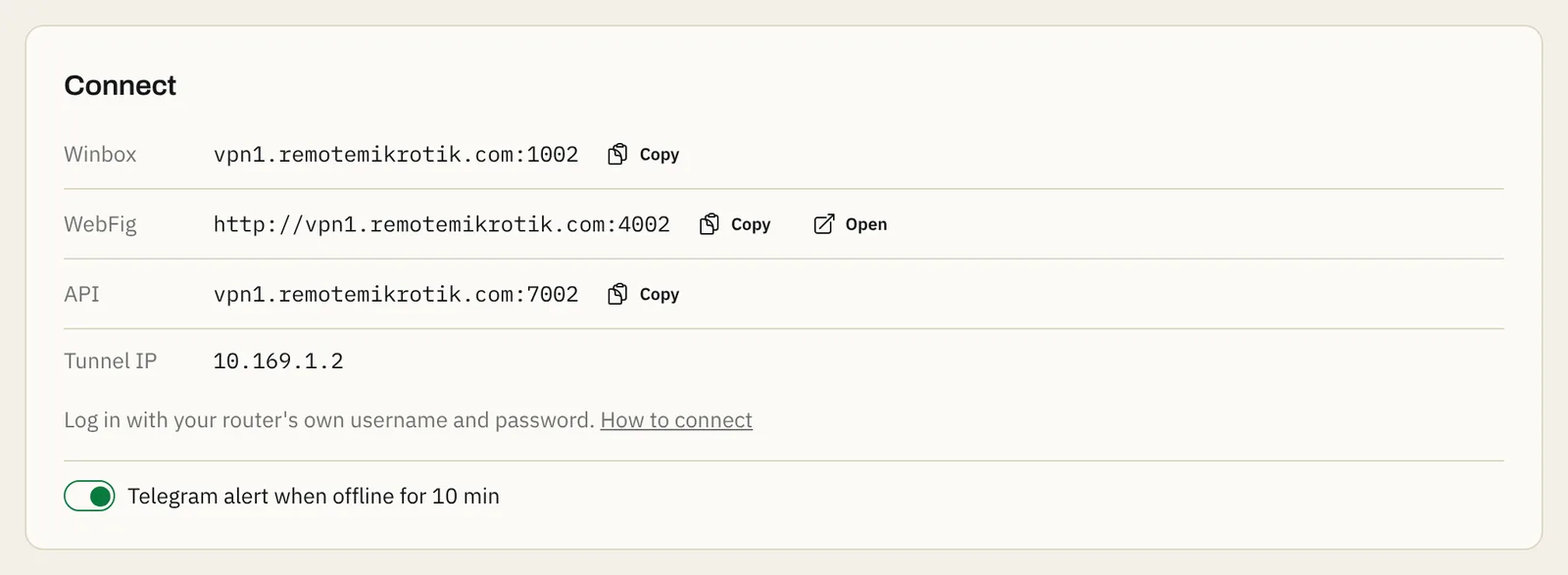
Steps to connect with Winbox
- Press Copy next to the Winbox address on the router page, for example
vpn1.remotemikrotik.com:1002, and paste it into Connect To in Winbox. Keep the port after the colon. - Enter your router's own login and password.
- Press Connect.
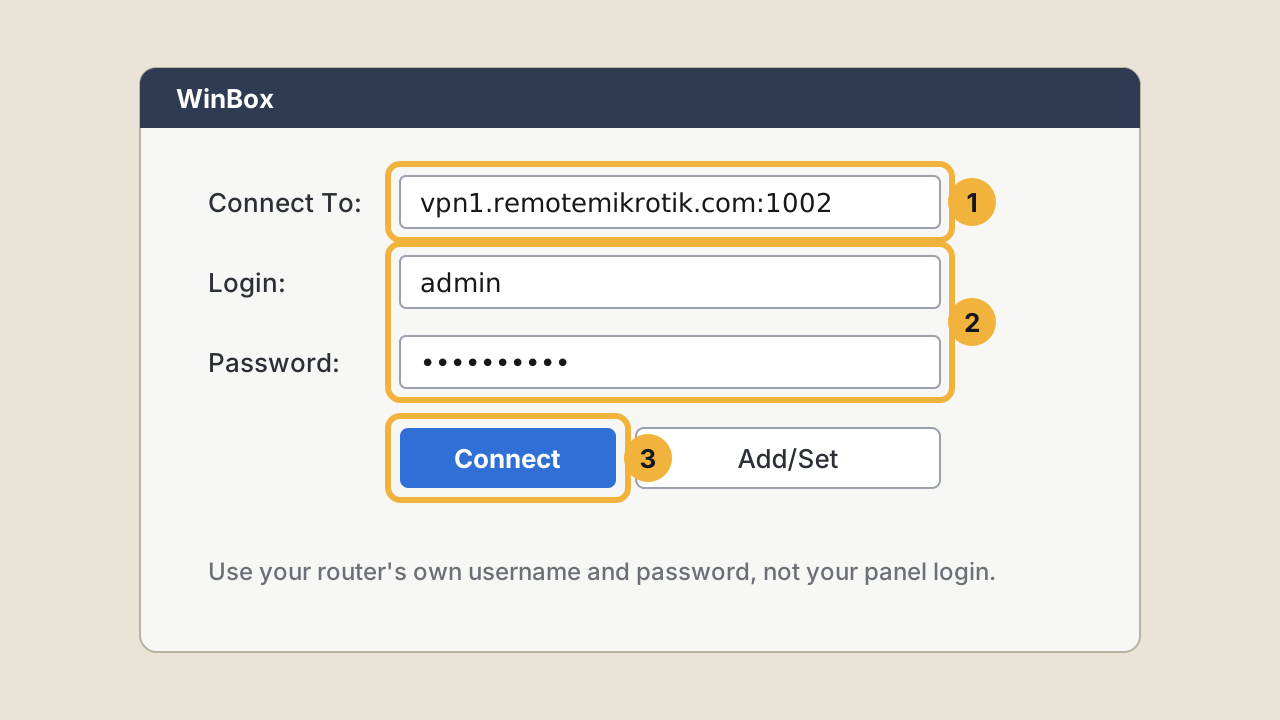
Tip: Press Add/Set in Winbox to save the address, so next time you just double-click it.
WebFig (Standard and Pro)
Open the WebFig link from the router page in any browser, for example http://vpn1.remotemikrotik.com:4002, and log in with the router's own login. WebFig must be enabled on the router (/ip service → www), which it is by default.
API (Standard and Pro)
Use the API address and port in your own scripts or tools, with a router user that has API rights. For example, with the RouterOS API on host vpn1.remotemikrotik.com and port 7002. The API service must be enabled on the router, and allowed from the tunnel.
If something goes wrong
- Winbox can't connect: is the router Online on its page? If not, see Router shows offline.
- "wrong username or password": use the router's own login, not your panel login.
- WebFig or API don't open on the Free plan: they are included in Standard and Pro. See Change plan.
Questions
Which username and password do I use in Winbox?
Your router's own login, the same as on the local network. Not your panel email and password.
Winbox says the connection timed out.
Check that the router shows Online on its page. If it is offline, see Router shows offline. If it is online, check that you typed the port after the colon.
Can I use the Winbox mobile app?
Yes. Enter the same address and port in the app's Connect To field.
Still stuck? Open a support ticket and tell us which step didn't work.