Telegram (Pro)
Connect Telegram
One button in your profile, one tap in Telegram.
1 min read · Updated
Telegram alerts and tools are included in Pro. You can connect Telegram on any plan; alerts and tools start working for your Pro routers.
Steps
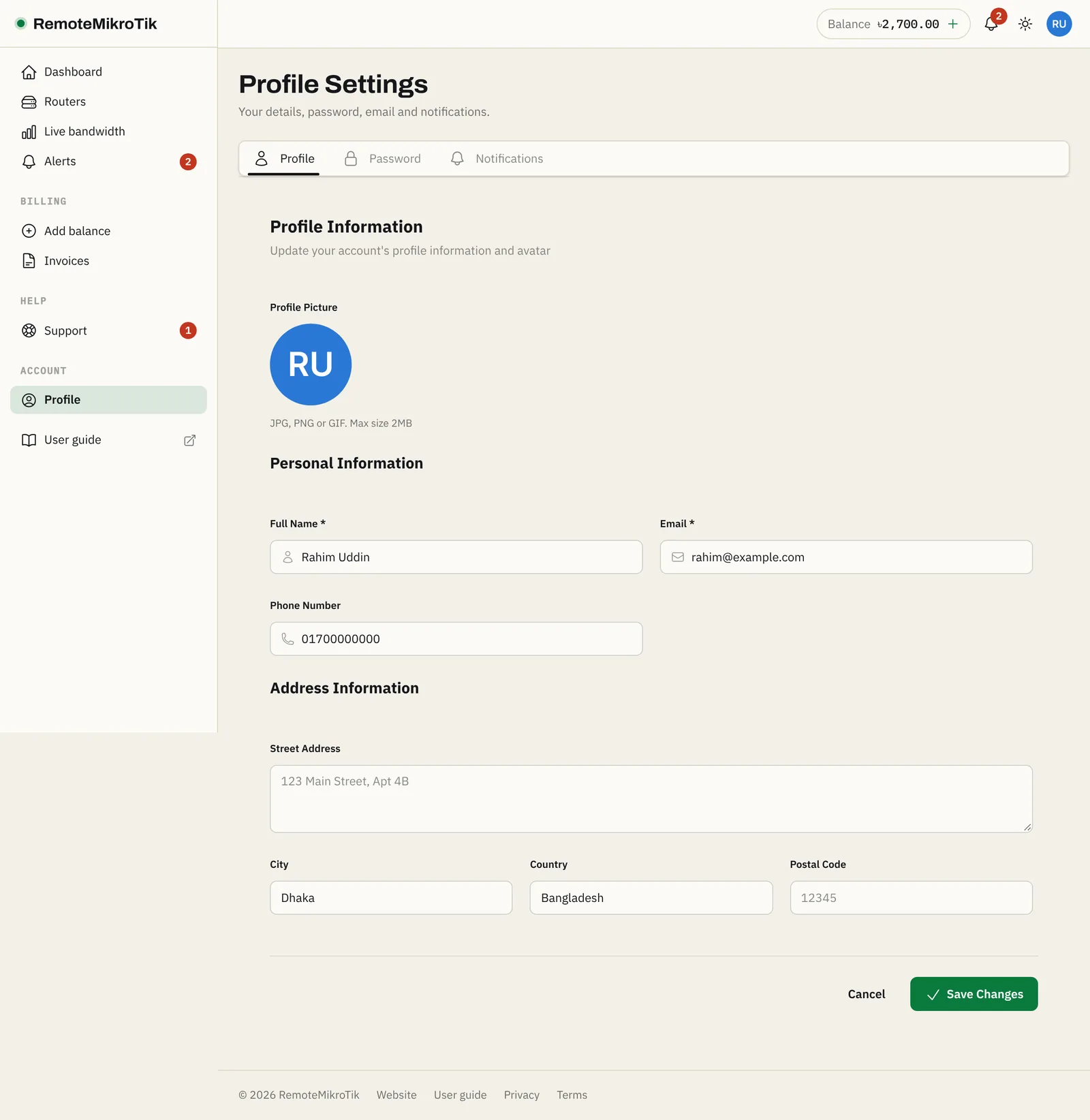
- In the panel, open Profile → Notifications and press Connect Telegram.
- Press Open Telegram. Telegram opens our bot with a one-time code. If Telegram is only on your phone, open the panel on your phone for this step.
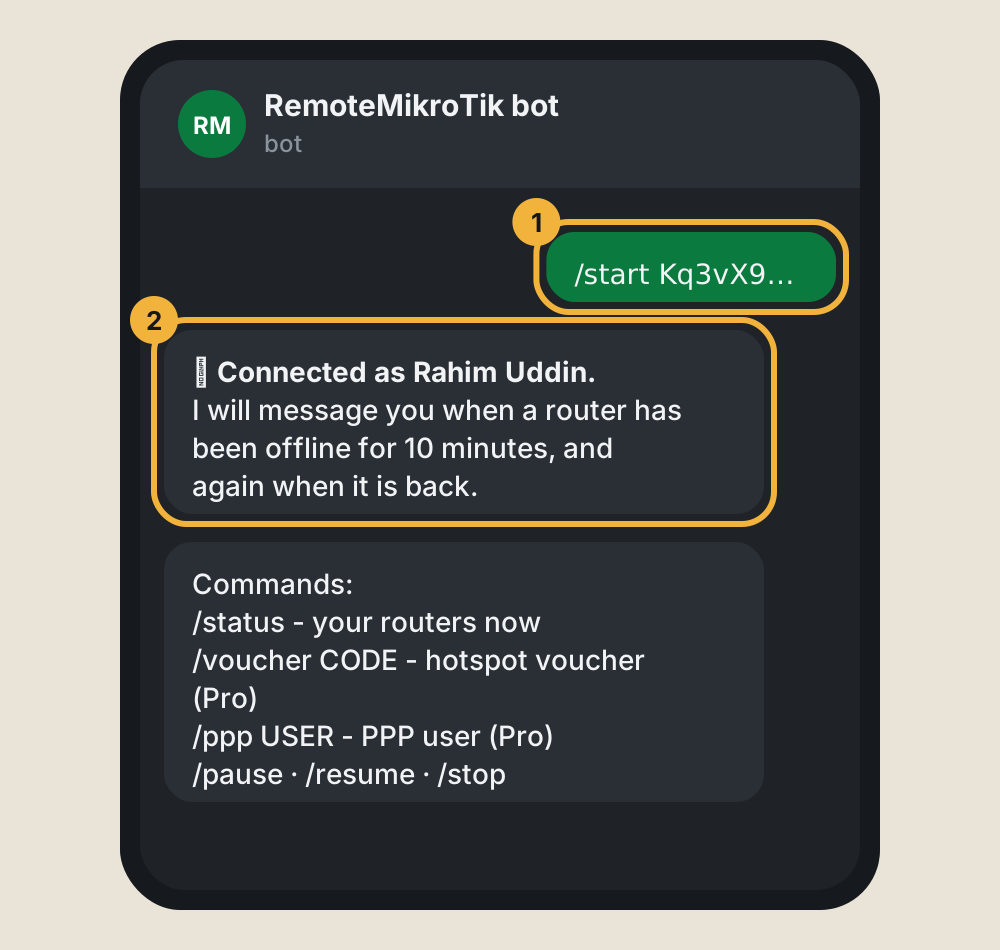
- In Telegram, press Start. The bot answers Connected as your name and lists its commands.
- Back in the panel, press Send test message to check that messages arrive.
Commands
| Command | What it does |
|---|---|
/status |
Your routers and whether each is online |
/voucher CODE (or /v) |
Look up a hotspot voucher; reset, disable or enable it (Guide) |
/ppp USER (or /p) |
Look up a PPP user; remove MAC lock, kick, disable or enable (Guide) |
/pause and /resume |
Stop and restart alerts, for example during maintenance |
/stop |
Disconnect Telegram from your account |
/help |
The list of commands |
Pause, resume or disconnect
- Pause alerts: alerts stop until you press Resume alerts (or send
/resume). Tools keep working. - Disconnect: in the panel (Disconnect) or with
/stop. Connect again any time.
Note: The bot only answers private chats with accounts it knows. Everyone else gets no information about your routers.
Questions
The link says the code is invalid or has expired.
Codes work for 15 minutes and only once. Press Connect Telegram in the panel again to get a new one.
Can two people get the alerts?
Each panel account links one Telegram account. For a team, each person can have their own panel account, or you can forward the bot's messages to a group.
Is Telegram needed to use the panel?
No. Everything also appears under Alerts in the panel. Telegram just brings it to your phone.
Still stuck? Open a support ticket and tell us which step didn't work.