Support & account
Profile, password and email
Your details, password, email address and notifications.
1 min read · Updated
Open Profile from the menu or your picture at the top right.
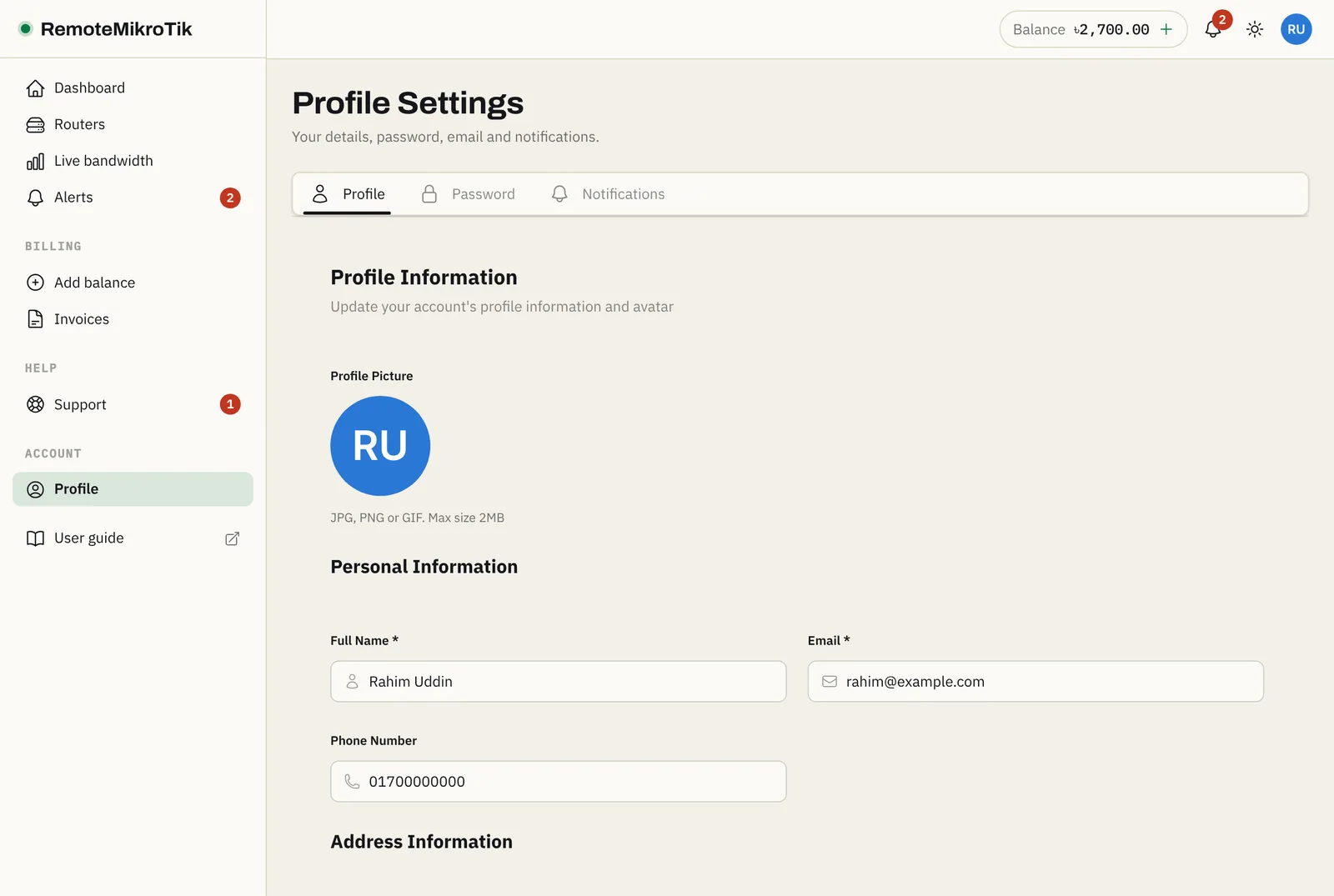
Your details
Change your name, phone, address and picture, then press Save Changes. Pictures can be JPG, PNG or GIF up to 2 MB.
Steps to change your email address
- Enter the new address in Email. A Current password field appears.
- Enter your current password and press Save Changes.
- Open the email we send to the new address and click the link (valid for 60 minutes). Your email changes only then.
- Your old address gets a message that the email was changed, so a change you didn't make never goes unnoticed.
Change your password
Open the Password tab, enter your current password and the new one twice, and press Update Password. Use at least 8 characters with upper and lower case letters and a number.
Notifications
On the Notifications tab:
- Email notifications: renewals, payment problems and account messages.
- Telegram: connect, pause or disconnect. See Connect Telegram.
Good habits
- Use a password you don't use anywhere else.
- Log out on shared computers (your picture → Logout).
- If you see a login or email change you didn't make, change your password and open a ticket.
Questions
I forgot my password.
On the login page, press Forgot password and enter your email. You get a link to set a new one.
Why didn't my email change right away?
For your security, the new address must be confirmed first. Open the link we sent to the new address within 60 minutes.
Still stuck? Open a support ticket and tell us which step didn't work.