Using the panel
The router page explained
Status, addresses, subscription, backups and setup, all for one router.
1 min read · Updated
Open a router from Routers or the dashboard. Everything about that one router is on this page.
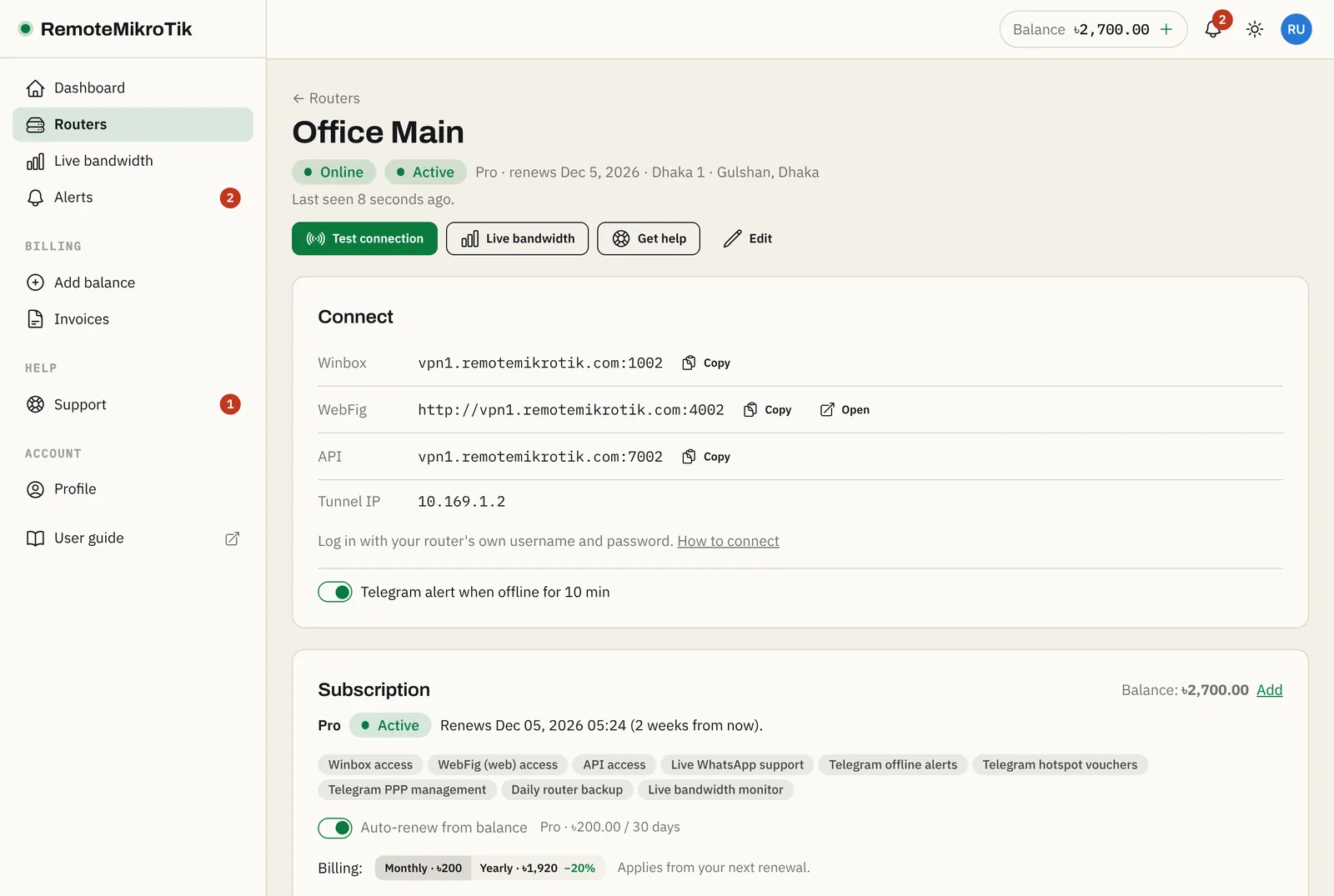
The top: name, status and actions
- Connection: Online, Offline or Not connected yet, and when we last saw the router. When it is offline, a What to check link opens Router shows offline.
- Subscription: Active, Payment overdue or Suspended, with the plan and the renewal date.
- Test connection logs in to the router through the tunnel and shows its name, RouterOS version, uptime, CPU and memory. You can test a few times a minute.
- Live bandwidth (Standard and Pro), Get help (opens a ticket about this router) and Edit (name, location, notes).
If our server is still setting up the router, or setting it up failed, a message appears here with a Retry button.
Connect
The first card has everything you need to reach the router: the Winbox, WebFig and API addresses, each with a Copy button, and the router's tunnel IP. See Connect with Winbox, WebFig or the API.
At the bottom: the switch for Telegram alerts when the router is offline (Pro).
Subscription
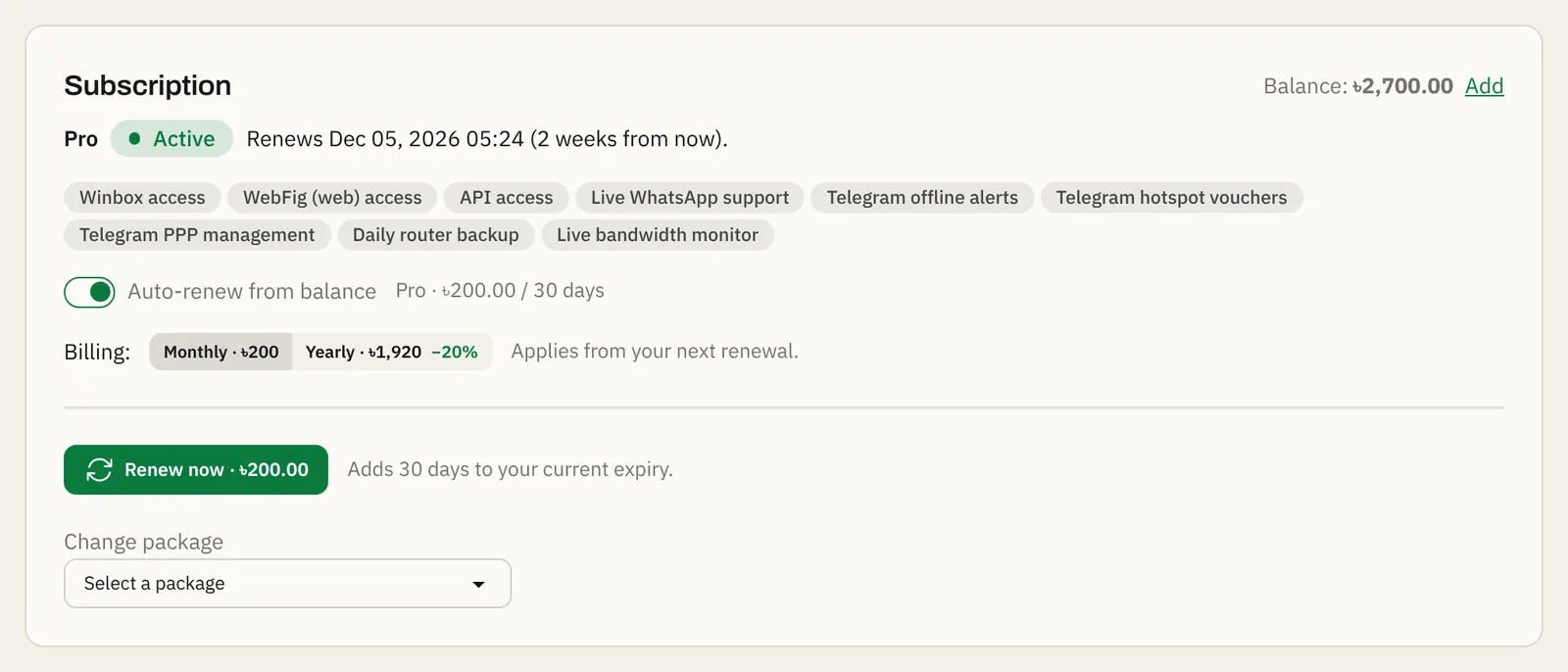
- Plan and status, and when it renews.
- What the plan includes.
- Auto-renew from balance: on by default. When on, the router renews itself from your balance a day before it expires.
- Billing: monthly or yearly for the next renewal.
- Renew now: pay the next period right away.
- Change package: upgrade or downgrade. See Change plan.
Backups
On Pro: turn daily backups on, back up now, and download or delete backups. See Daily router backups.
Recent actions
What was done on this router from Telegram (voucher resets, PPP actions) and by whom.

Router setup
The setup script and how to run it. See Run the setup script.
Still stuck? Open a support ticket and tell us which step didn't work.