Telegram (Pro)
Manage PPPoE users from Telegram
Unlock, kick or disable a PPPoE customer without opening Winbox.
1 min read · Updated
Included in Pro.
Steps
- Send
/pppfollowed by the user name to the bot, for example/ppp karim-home(or/p karim-home). - The bot shows the user's profile, MAC lock and status. Press the action you need, for example 🔓 Remove MAC after a customer changed router.
- The bot confirms. The action is recorded under Recent actions on the router's page.
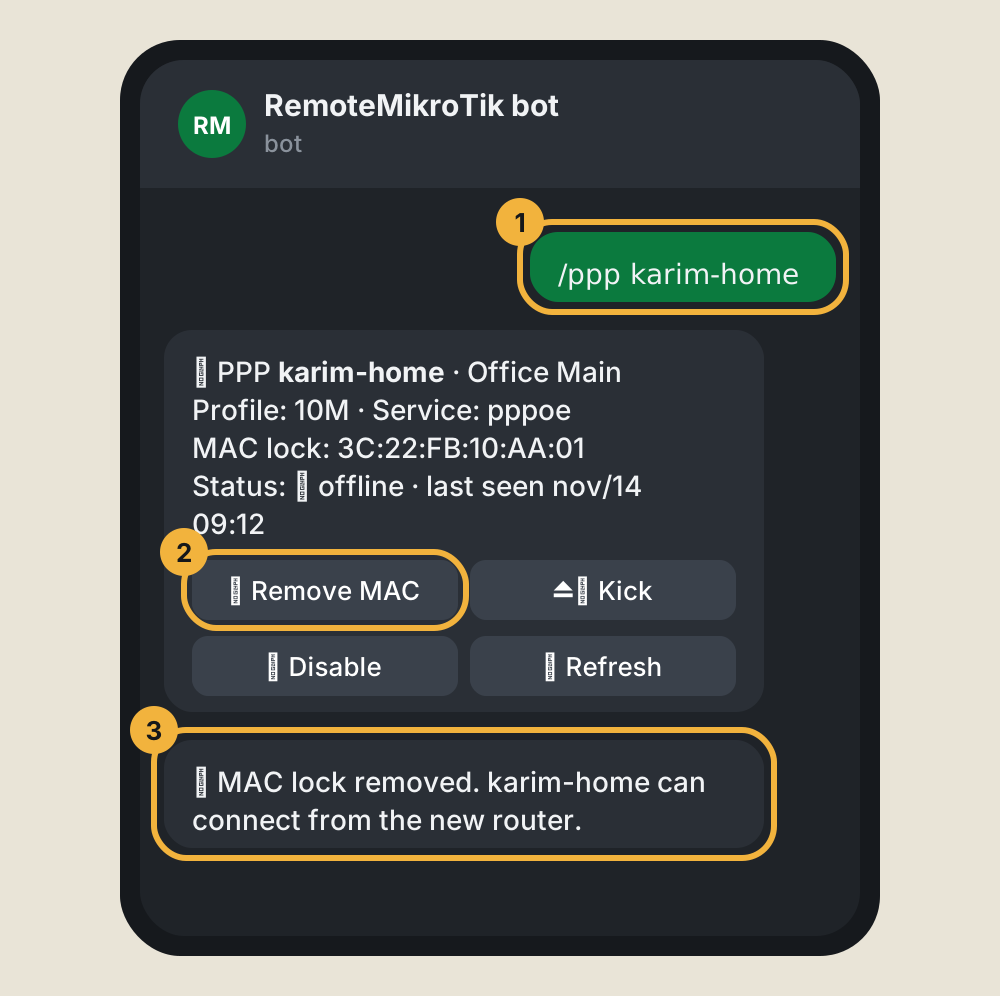
The buttons
| Button | What it does |
|---|---|
| 🔓 Remove MAC | Clears the MAC lock (caller-id), so the user can connect from a new device |
| ⏏️ Kick | Ends the current session; the customer's router reconnects by itself |
| ⛔ Disable | Asks once more, then disables the user and ends the session |
| ✅ Enable | Lets a disabled user connect again |
| 🔄 Refresh | Shows the latest state |
If something goes wrong
- "was not found": check the spelling; PPP names are case-sensitive on the router.
- The router with the user is offline: the bot lists it as not reachable; try again when it is back.
Questions
What is the MAC lock?
The caller-id set on the PPP secret. When it is set, the user can only connect from that one device. Remove MAC clears it so the customer's new router can connect.
Does Disable also disconnect the user?
Yes. Disable sets the secret to disabled and ends the active session. Enable lets the user connect again.
Still stuck? Open a support ticket and tell us which step didn't work.